

Creates the account
The user your credential signs in as, with the platform’s public key - accepted only from the addresses you entered.
Open Infrastructure › Servers and click Add server
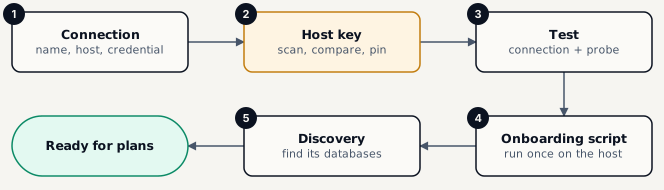
Connection - describe the host
Name (unique), Hostname (DNS name or address), Port, Environment, SSH credential, and optionally a Jump host, Tags and Notes. Then Save and continue.
Host key - pin what the server answers with
Click Scan the host key. On the server’s own console run ssh-keygen -lf /etc/ssh/ssh_host_ed25519_key.pub and compare the fingerprints. When they match, tick I compared the fingerprint out of band and click Pin host key.
Test - prove every step of the connection
Run the test walks the checks below and then probes the operating system and tools. Fix the first red line and test again.
Onboarding script - prepare the host once
Enter the addresses the platform connects from, choose whether to install bmp-helper, then Write the script, download it and have the host’s administrator run sudo sh ./<file> on it.
Discovery - find what to back up
Optionally Discover databases and containers now, then Finish.
| Check | Passes when |
|---|---|
| Jump host | The jump host opens and forwards to it (only with a jump host). |
| DNS | The name resolves. |
| TCP | The port answers. |
| SSH handshake | The far side speaks SSH. |
| Host key | The host key is the pinned one. |
| Authentication | The credential is accepted. |
| Clean shell | The login shell prints nothing of its own (no banners from .bashrc). |
| POSIX shell | The login shell is POSIX. |
Creates the account
The user your credential signs in as, with the platform’s public key - accepted only from the addresses you entered.
Installs bmp-helper
Recommended. One sudoers line lets the account read and restore only under the folders you allow - never a root shell.
Docker group
Optional, and equal to root on that host. Prefer the helper’s docker verbs.
Safe to re-run
Run it again after any change; it only changes what is not already in place.